Take the next one. Nobody else will.
Ribbon turns your Missive inbox into a queue the whole team works down. Whoever's free takes the next conversation, and it's theirs: nobody else lands on it. When the customer writes back, it comes to the front. When you've answered, it gets out of the way.
- 1. Refund for order #4821 · Priya S. · 09:12 Sam
- 2. Re: Parcel still not here · Tom W. · 09:40 replied
- 3. Wrong size, can I swap? · Ana R. · 08:55 new
- 4. Invoice copy for March · Lee & Co · Tue read
- Delivery address change · answered, out until they write back
One inbox. One line. No two people on the same email.
Point a shared queue at a team inbox or a label, and Ribbon reads it every minute. Every conversation that's waiting on you is in the line, in an order that makes sense at nine in the morning.
Take next. It's yours.
The first conversation goes to whoever pressed it, assigned to them in Missive, with the timer running and the whole thread open beside it. Two people pressing at once get two different conversations, never the same one.
Reply, and it steps aside.
Once the latest message is yours, the conversation leaves the line. When the customer writes back it comes straight to the front: they've waited once already, and the thread is still warm. Close it in Missive and it's gone.
Unread first. Nothing left behind.
Conversations nobody on the team has opened come before the ones someone has, so you don't end up reading over a teammate's shoulder. One that's been read but left unanswered for a day comes back up with them, so nothing sits at the bottom forever.
Auto mode: close one, the next is on the clock.
Turn it on for a queue and the clock moves itself. Close the conversation in Missive, or reply and let it drop out, and Ribbon starts you on the next one. No button between emails.
Several inboxes, one queue.
A queue can follow more than one thing at once: the support inbox and a "Billing" label, say, or the inbox and a column of bug reports on a ClickUp board. Each is checked on its own, and stopped on its own.
Put it back for someone else.
Stuck on one, or it needs someone who knows the account? Put it back at the front for whoever takes next, and work on down. If nobody picks it up, it comes round to you again at the end.
Your own queue too.
Working your own inbox alone? Follow it from your own queue instead: the same rules, just for you, with a toast when a reply puts something first.
Press one button between emails. That's the job.
Nobody has to divide up the inbox, and nobody has to ask "has anyone got the refund one?".
09:00 · The night's mail is in line
Everything waiting on the team, unread at the top. Sam takes the refund, Jo takes the parcel query, Ribbon keeps them apart.
10:30 · A customer writes back
Their reply puts the conversation at the front, ahead of anything new. The next person free gets it, with the thread open where they left off.
17:00 · The day, counted
How many each person handled, the time each one took, the ones that ate the afternoon, and how much of the day was interruptions. No timesheet; the queue kept it.
Your inbox stays in Missive. Ribbon reads it and keeps the time.
Connect Missive once. Your inbox, each team's inbox and every shared label become boards in Ribbon, and a conversation is a card. Nothing moves out of Missive, and nothing in Missive changes unless you do it.
Ribbon is an independent app built on Missive's public API. Missive is a product of its own makers; this page isn't theirs.
The thread in the tray. Reply from there.
Start on a conversation and the whole thread opens beside the timer. Reply from Ribbon, or leave it as a draft in Missive for a second pair of eyes before it goes.
The unread dot, where you'd expect it.
Conversations you haven't opened show a dot and a bolder title on the board, the same signal as in Missive, so the list reads the same in both.
Waiting on you, at a glance.
Every conversation shows whose turn it is. The ones waiting on your team are the list that matters; the ones waiting on the customer stay out of the way.
The space matches the organisation.
Link a Ribbon space to your Missive organisation and its teams to Ribbon teams; the people come across already matched. Each person connects their own Missive, so each sees what Missive lets them see.
Watched clients. planned
A board of everything from one customer, by address, domain or contact group, with the time they've cost you so far.
See who's on what, without asking.
The Team screen shows each person's ring, the conversation they're on and their day so far, live. The queue underneath shows what's waiting and who has what.
Each person's time stays theirs. A manager sees the desk, not a surveillance feed: private sessions stay private, and the space decides who sees whose timer.
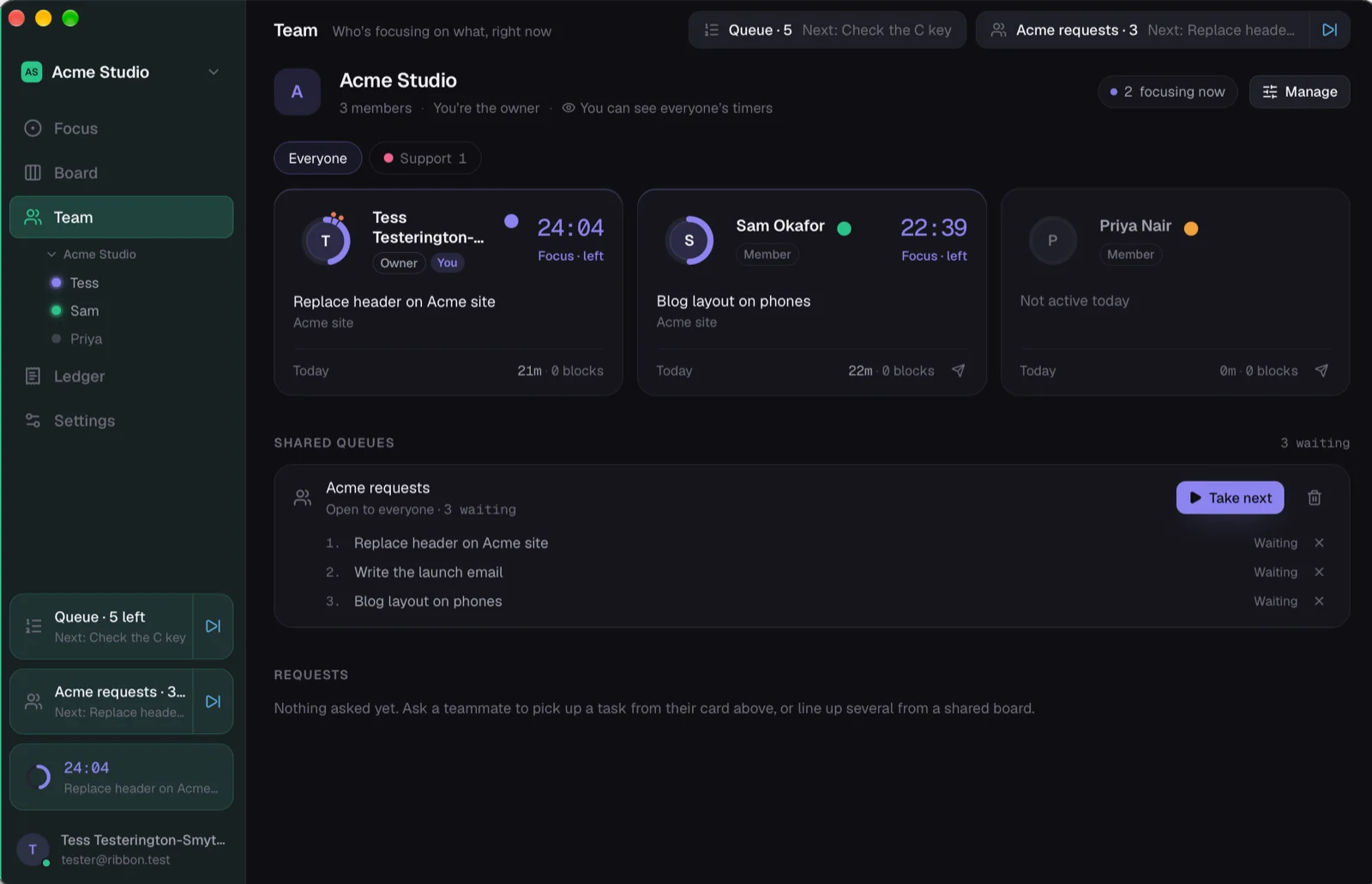
Interruptions, counted.
A phone call in the middle of an email is one tap and a reason. At the end of the week you can see what the desk's time really went on, not just how many tickets closed.
A light on the desk.
With a BUSY Bar on the desk, the timer and the conversation you're on show on it, with how many are waiting in the queue. Turn the dial to look ahead, press it to take the next.
On the iPhone too.
The queue, Take next and the timer on your phone, with the timer on the Lock Screen while you work.
Free while it's early. Per seat after.
Shared queues and the Team screen are part of a team space, priced per seat once pricing is live. Until then it's free, and you'll know the price well before it starts.
Ask for seats. We'll send the links.
Leave your email and what your desk uses today, and you'll get a sign-in, the Mac download and the iPhone link, usually the same day. Bring the team when you're ready.